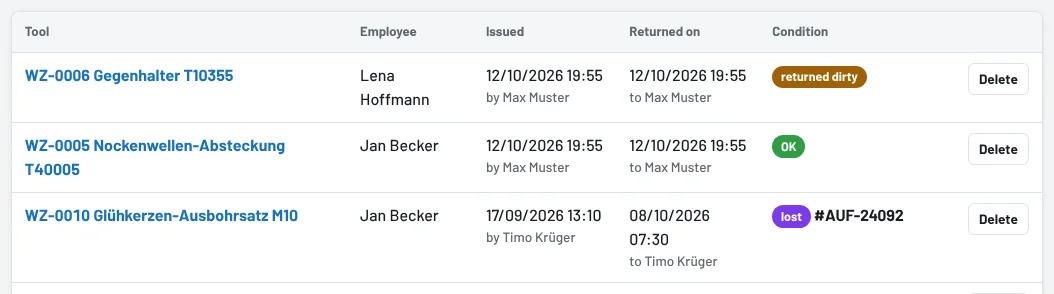
On every return, Tulz records the tool's condition: OK, dirty or defective. "Defective" automatically creates a damage report, "dirty" keeps the tool available and remembers the condition. You decide whether the employee has to choose the condition every time.
Step 1: Set optional or mandatory
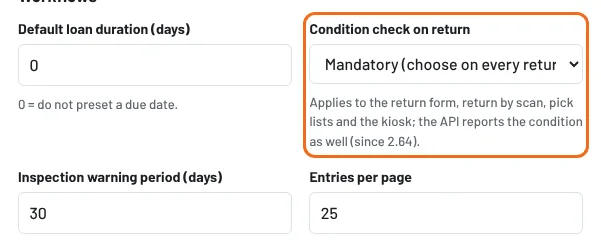
- Open Settings and find the field Condition check on return in the Workflows section.
- Optional ("OK" preselected) – default: whoever changes nothing returns the tool as OK.
- Mandatory (always choose) – without a choice, nothing is booked back.
- Click Save at the bottom.
Step 2: What returns look like in mandatory mode
- Loan list (Loans): the quick return shows "– condition –"; choose first, then confirm the return in the same row.
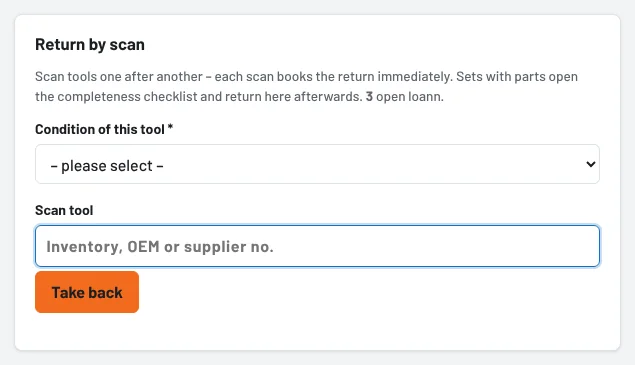
- Return by scan: choose the condition before each scan – it only applies to the next tool.
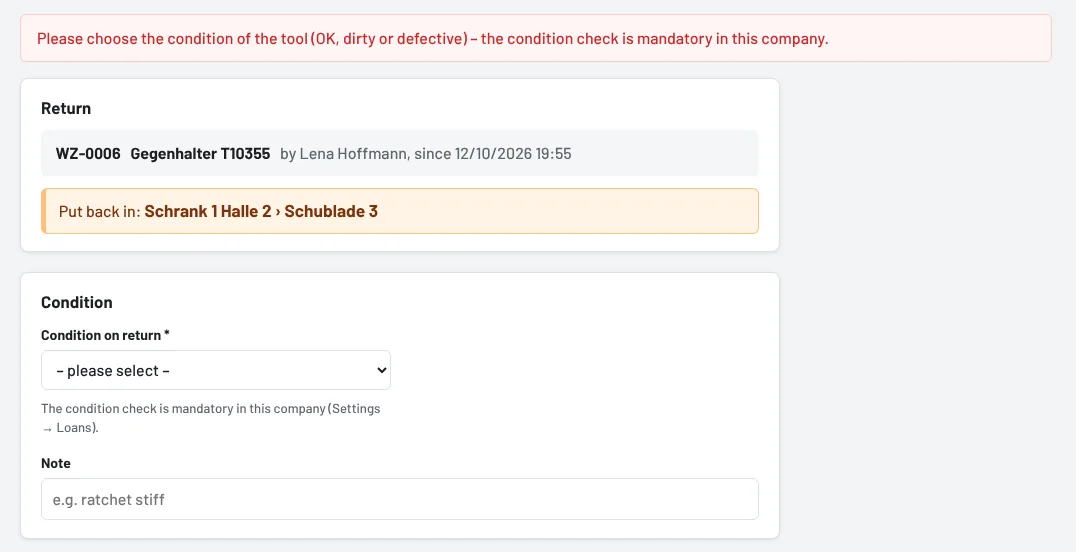
- Return form and tool page: the field "Condition on return" is required.
- Pick list → return all: one condition for all tools still open; individual tools have their own choice.
- Kiosk and API: the same; the API expects
zustand=ok,verschmutzt(dirty) ordefekt(defective) and responds with error 422 if it is missing.

If no condition is chosen, Tulz does not book the return and shows a notice – the tool stays on loan until the condition is chosen.
Step 3: Keep an eye on dirty returns
"Dirty" does not change the status – the tool is available again immediately. The loan shows "Rückgabe: verschmutzt", the History shows the label returned dirty, and so does the tool's timeline. The Shrinkage report counts dirty returns per employee – so you notice when tools regularly come back uncleaned.