Every price in Tulz says whether it is net or gross – in purchase orders, on the tool, for inspection and repair costs, loan fees, the tool fee and in all reports. Prices are always stored net; you decide once how they are entered and shown.

Net or gross?
- Net (recommended) – for businesses that can reclaim input VAT, which is almost every workshop. You get the VAT back from the tax office, and tools are carried net as fixed assets. Only with consistent net prices can tool value, order totals and cost per use be compared.
- Gross – for small businesses that cannot reclaim input VAT (e.g. the German small-business scheme, § 19 UStG): for them the gross price is the real price.
Setting it up – step by step
- Administration → Settings, tab Business, section Prices → Set up prices.
- Choose Net or Gross.
- Check the VAT rate – the rate of the country in your billing address is suggested, 19 % in Germany.
- Save. You can switch at any time; stored values do not change, only entry and display.
Entering a gross price from a shop
Many web shops show gross prices. That is why every price field has a Convert gross button: enter the gross price, tap it – Tulz converts it to net with the VAT rate and shows e.g. "24.67 gross = 20.73 net" below. Undo restores the value you typed. If you enter prices gross, you see Convert net instead.

Purchase orders
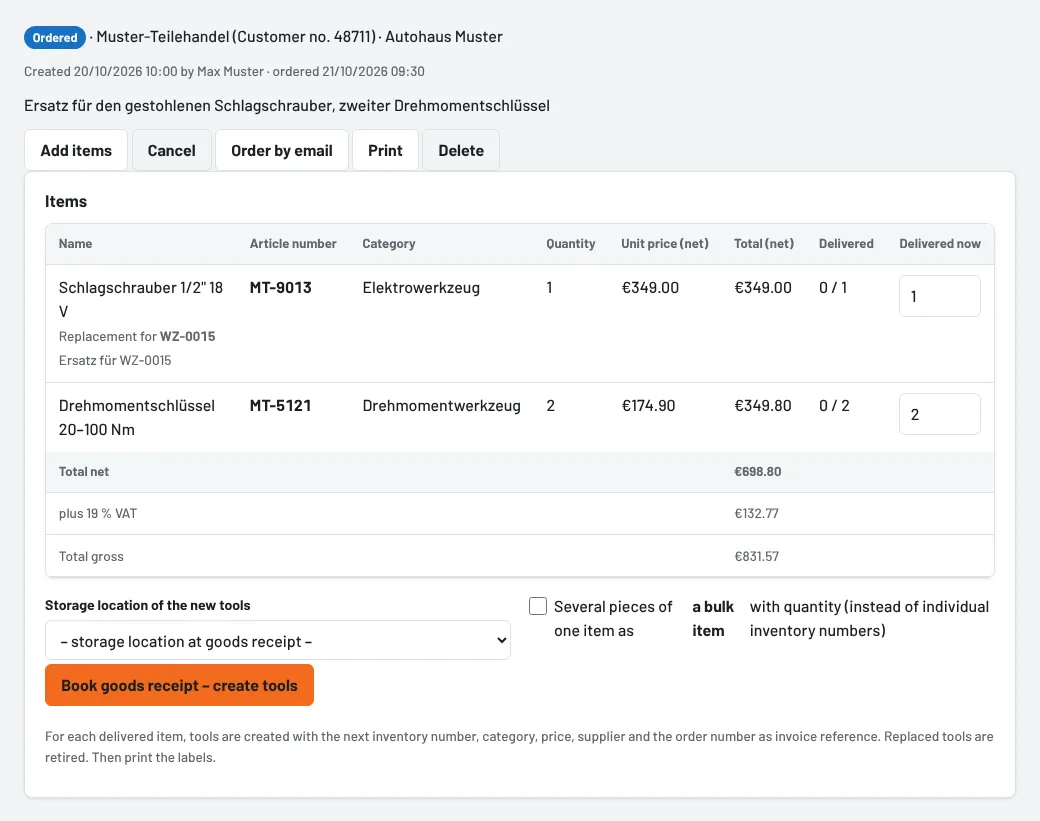
Every purchase order has its own VAT rate – the business's rate is suggested; 0 % fits e.g. a supplier in another EU country. Below the items you see the net total, the VAT and the gross total, as on the supplier's invoice. On goods receipt, the new tool gets the item's price. Once something has been received, the order's rate is fixed.
After the update: existing prices
Until version 2.83 no price said whether it was net or gross. Tulz treats all existing prices as net and asks once – the overview shows Net or gross? with the link Specify now:
- Net – leave as is if you entered net prices so far. Nothing changes.
- Gross – convert to net if you entered gross prices so far. Tulz divides all existing prices once by 1.19 (or your rate): purchase prices, order items, inspection and repair costs, loan fees, tool fees and tools in the recycle bin. Beforehand the page shows how many prices there are, with examples. Orders with 0 % stay as they are, and so do deposits.
- Some net, some gross? Then choose Net – leave as is and correct the gross prices one by one – with Convert gross next to the field.
You can undo the conversion on the same page. Prices changed since then stay as they are.
Chose Net – leave as is by mistake? Then Settings → Prices shows Gross after all? Reopen the question – after that you can convert. Prices you have entered since the change would be converted as well.
Import, export and API
- CSV import and export: the column is called Anschaffungspreis (netto) or (brutto). On import Tulz converts accordingly; without the suffix your setting applies. The migration assistant recognises "gross", "incl. VAT", "net" or "excl. VAT" in the column heading.
- Reports, monthly report and exports show all amounts in your setting – with the note "All amounts net." or "gross".
- The API always returns amounts net;
GET /api/auftrag/{nr}additionally gives the tool fee gross and the VAT rate.
Who sets it up
Administrators of the head office (right Change settings).
As of