Every new special tool raises the same question: does it pay off – and when has it paid for itself? The Purchase calculator under Reports → Purchase calculator answers it in a minute. Enter the price, uses and benefit – the result updates as you type.
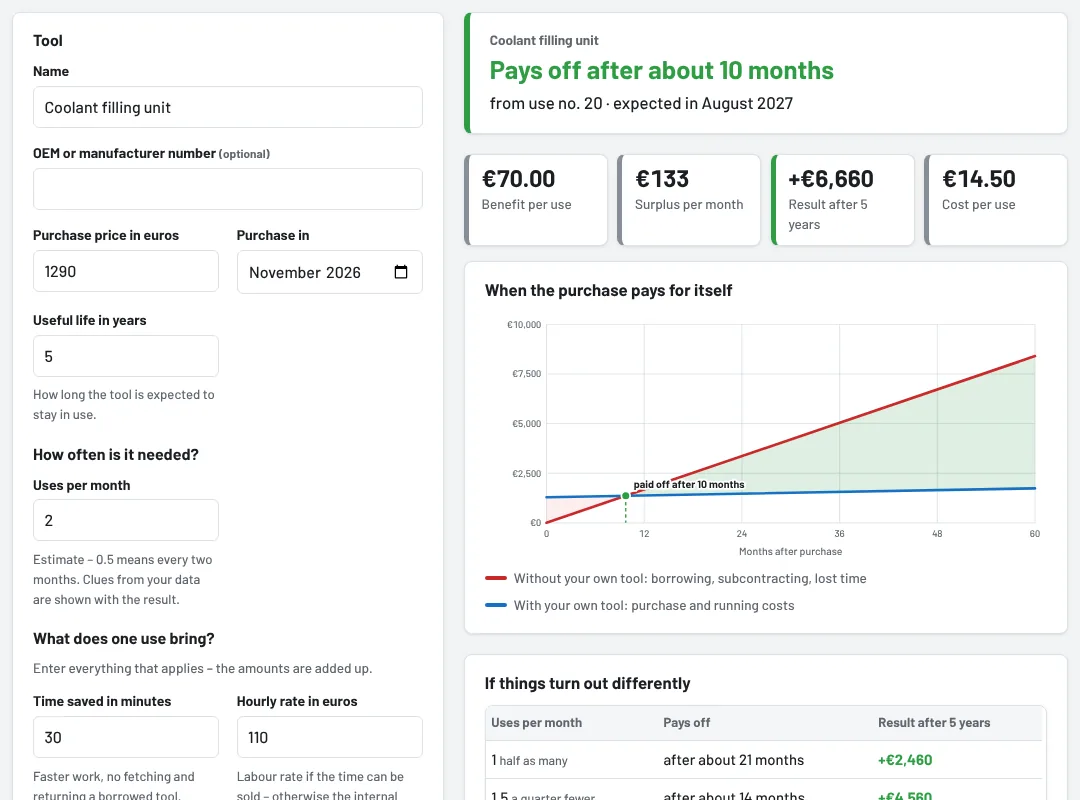
Step 1: Tool and price
- Name and, if known, the OEM or manufacturer number – Tulz uses them to look for clues in your data (see step 2).
- Purchase price net, Purchase in (month) and the useful life in years – 5 years is suggested.
Step 2: How often is it needed?
Estimate the uses per month, decimals are fine: 0.5 means every two months. Next to the result you will find Clues from your data – how often an identical tool in stock was lent out in the last 12 months, how often you borrowed it from another site, through the network or from outside and, for a second unit, how often it was waitlisted or requested while it was out. Apply puts the value into the field.
Step 3: What does one use bring?
Enter everything that applies – the amounts are added up:
- Time saved in minutes and hourly rate – faster work, no fetching and returning a borrowed tool. Use the labour rate if the time saved can be sold, otherwise the internal cost per hour. Tulz suggests the hourly rate of the most recently saved calculation.
- Cost without your own tool – rental fee, trip to the lender or subcontracting to another workshop.
- Extra revenue – for jobs you would have to turn down or pass on without the tool (contribution margin).
Then the running costs per year: inspection and calibration as well as maintenance and wear.
Reading the result
- At the top is the verdict, e.g. Pays off after about 10 months – "from use no. 20 · expected in August 2027". If the tool only pays for itself after its useful life, it says Only pays for itself after …; if the running costs exceed the benefit, Does not pay off.
- The key figures: benefit per use, surplus per month, result after the useful life (plus or minus) and cost per use.
- The chart shows two lines: red for what adds up without your own tool (borrowing, subcontracting, lost time), blue for the purchase plus running costs. Where the lines cross, the tool has paid for itself; the green area after that is the surplus.
- If things turn out differently calculates with half as many, a quarter fewer and half as many uses again – so you can see how solid the decision is.
- If it does not pay for itself within the useful life, Tulz shows the uses per month needed and the highest price at which it still pays off.
- How it is calculated shows every step with your figures. Interest, taxes and residual value are left out – the calculator is a decision aid, not an investment appraisal.
The address in the browser contains all entries – save it as a bookmark or pass it on. Print / as PDF prints the entries and the result, for example for the talk with management.
With purchase requests
- In the list of Purchase requests, Calculate opens the calculator with the name and number of the request. Save calculation to the request stores it there: the request shows the short version, e.g. "Calculation: Pays off after about 10 months (from use no. 20) · +€6,660 in 5 years", with a link to the calculation. Remove saved calculation takes it off again.
- Add to an order copies the price from the calculation into the purchase order.
- Without a request: Add as a purchase request creates a new request including the calculation – colleagues can back it.
Other ways into the calculator
- Reports → Overview → Bottlenecks: Calculate next to a tool calculates a second unit – with the price and inspection costs of the existing one and the waitlist entries and requests of the last 90 days as uses.
- Reports → Cost-effectiveness → Buy instead of borrow?: Calculate takes over how often the tool was borrowed.
Who sees the calculator
Everyone with the right View reports – foremen, the tool crib and administrators. Foremen, the tool crib and administrators save calculations to requests; mechanics do not see the calculation on the request.
As of