Passkeys (sign in without a password)
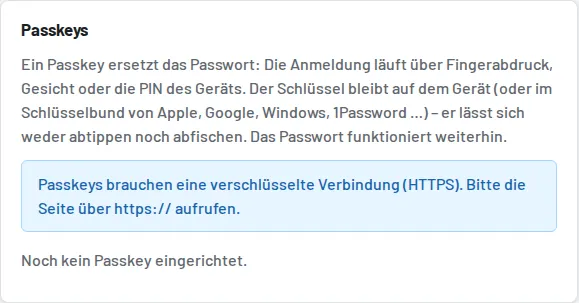
A passkey is a key pair stored on the device (or in the keychain of Apple, Google, Microsoft, Bitwarden, 1Password …).
It is unlocked with a fingerprint, face or the device PIN. Tulz only stores the public part – it is not a secret.
A passkey cannot be typed, cannot be obtained over the phone and cannot be entered on a fake site: it only works on
the domain it was created for.
Set up: My profile → Passkeys → Set up passkey on this device. Give it a name (e.g. "Luca's iPhone",
"Workshop tablet 2", "YubiKey"), confirm on the device – done. Up to 10 passkeys per user, each can be renamed and deleted.
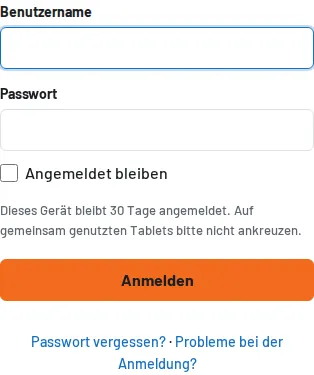
Sign in: on the sign-in page tap Sign in with passkey. In Chrome, Edge and Safari the passkey also appears directly as a
suggestion in the "Username" field. If a username is entered in the field, security keys without their own storage are offered too.
After a passkey sign-in the device automatically stays signed in (since 2.26.1, like "Stay signed in" – the duration is set in
Settings → Sign-in), even without the tick. If passkeys are used on a shared tablet, switch this off there ("Stay signed in after
passkey sign-in"); then the tick decides again. If a passkey was set up with fingerprint, face or PIN,
Tulz requires this confirmation at every sign-in – merely possessing an unlocked device is not enough.
Requirements: HTTPS (with Plesk via Let's Encrypt in two clicks), the PHP extension openssl, an up-to-date browser.
The algorithms ES256, RS256 and Ed25519 are supported – covering everything from Face ID and Windows Hello to YubiKey.
Domain: passkeys are tied to the domain (Settings → Sign-in → Passkey domain). If left empty, Tulz takes the domain from
the application's address and strips a leading www. – for https://tulz.work or https://www.tulz.work the
passkey domain is therefore tulz.work, and the same passkey works under both addresses and under every subdomain
(app.tulz.work). If Tulz should only apply under a specific subdomain, enter it here. After a real change of domain
the passkeys must be set up again – the password keeps working.
Device lost? The passkey itself is worthless without the unlocked device. Still: *Users → edit → Remove passkeys and
devices* deletes all of the employee's passkeys and signs out all devices. Everyone can also delete their passkeys themselves in their profile.
Apps: in the Android app (WebView) and the desktop program (Electron), passkeys are only available if the system platform
passes them through. In a normal browser and in the home screen app (PWA) they always work.
Error message from a password manager? Password manager add-ons (Bitwarden, Proton Pass, 1Password …) take over passkey requests
in the browser. If the add-on fails – known e.g. for Bitwarden in Firefox for Android – Tulz shows a note about it with the
add-on's technical message in small print below. Remedy: switch off saving passkeys in the add-on or pause the add-on for this site;
the browser or operating system then takes over. The password keeps working in any case.
Stay signed in
The tick on the sign-in page stores an additional cookie: the device stays signed in for 30 days (default) and is no longer
signed out due to inactivity. Intended for your own phone and your own office computer – not for the tablet that everyone
shares in the workshop.
- The database only stores the hash of the secret; the cookie itself is
HttpOnly,SameSite=LaxandSecurewith HTTPS. - If an old or forged cookie is presented, all remembered devices of this account are deleted (note in the log).
- My profile → Stay signed in lists the signed-in devices (browser, system, last use) – sign them out one by one or all at once.
- Changing the password, deactivating an account and "Forgot password" automatically sign out all other devices.
- Switch off or change the duration: Settings → Sign-in. The cron job removes expired entries.