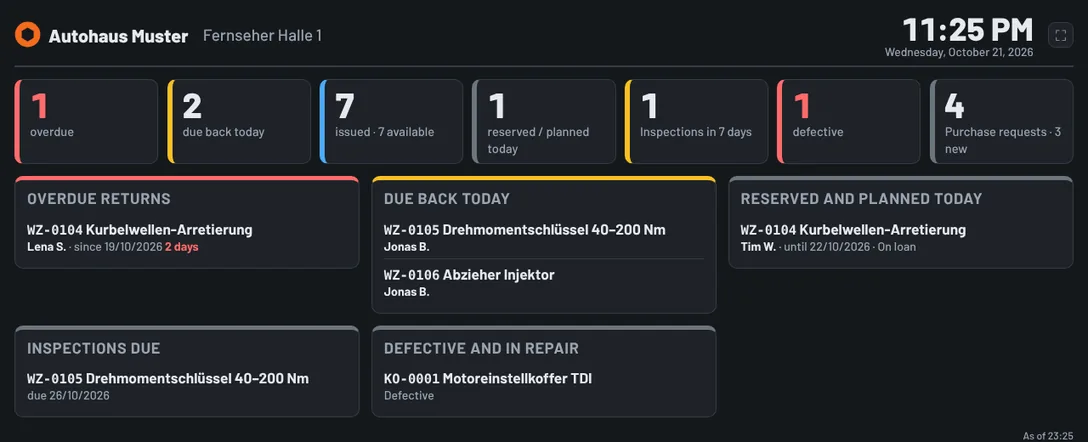
A large screen on the workshop floor shows everyone at a glance what is going on: which tools are overdue, what has to come back today, what is reserved for today or on a planned pick list, how much is currently issued, which inspections are coming up and what is defective or in repair. The workshop display runs without sign-in via a secret link, refreshes itself every minute and keeps running for hours without anyone touching it.
What you need
- A TV with a browser (smart TV, Fire TV stick, mini PC) or a tablet in a wall mount.
- The right Change settings (administrator at head office).
Step 1: Add a display
- Open Settings and click Workshop display in the Workshop floor section.
- Under Add display, enter a name, e.g. "TV workshop 1".
- With several sites, choose the site – the display then only shows that site's tools. Empty = all sites.
- Show employees: First name and initial ("Max M.", recommended), Full name or No names. The screen hangs in the open workshop – customers and visitors can see it.
- Design: Dark (default, easy to read and kind to TV panels), Light or As set on the device.
- Under Sections shown, tick what should appear.
- Click Create and generate link. For security, Tulz asks for your password or passkey once more.
Step 2: Open the link on the screen
After adding, the link appears once with a QR code.
- Open the browser on the TV or tablet.
- Scan the QR code, type in the link or send it to the device in a message – ideally save it as the start page or a bookmark.
- Tap ⛶ Full screen at the top right. The mouse pointer and the button disappear after a few seconds.
The link is like a key: anyone who knows it can see the display. Do not share it in group chats or emails to outsiders.
What the screen shows
| Section | Content |
|---|---|
| Key figures | overdue, due back today, issued (with available), reserved/planned today, inspections in 7 days (of which overdue), defective (of which in repair), purchase requests |
| Overdue returns | tool, employee as configured, since when and how many days |
| Due back today | tools whose return is due today |
| Reserved and planned today | today's reservations and planned pick lists with today as issue date |
| Inspections due | inspections in the next 7 days, overdue ones in red |
| Defective and in repair | defective and incomplete tools |
Each list shows up to 8 entries, the rest as "+ n more". Time and date run at the top right (based on the server clock); at the bottom you can see when the display was last updated.
Day to day
- The display fetches the latest status every minute – nobody has to do anything. If the Wi-Fi drops, the last status stays on screen with "No connection – display as of …" above it. As soon as the network is back, it carries on by itself.
- Tablets stay awake while the page is open (if the browser supports it). On TVs, switch off the energy-saving mode or automatic switch-off in the device menu.
- The language is your business's default language (Settings → Business).
- If the licence is blocked, the screen only shows a neutral notice without any data.
Show, renew or revoke the link
Under Settings → Workshop display every display is listed with Last accessed – so you can see whether the screen is running.
- Show link: shows the stored link again (after confirming with your password or passkey), e.g. for a replacement device.
- New link: creates a new link; the old one stops working immediately – useful if the link has got into the wrong hands.
- Revoke: the screen immediately stops showing data ("This display link is invalid").
- Edit: change name, site, name display, design and sections – the link stays the same.
- Delete: remove the display together with its link.
Security
- The link consists of 48 random characters and is stored in Tulz only encrypted or as a checksum.
- Search engines and link previews of messengers (WhatsApp, Teams, Slack …) do not get to see any data.
- The screen needs no sign-in, sets no cookie and cannot change anything – it only displays.
- Management is locked on the kiosk tablet.
As of