Not every recurring job on a tool is an inspection with a report: the filter on the A/C service unit needs changing every six months, the oil in the compressor needs checking, the cordless screwdriver batteries need charging and the diagnostic tester needs updating; torque wrenches should be set to their lowest value after use. With Care & maintenance Tulz reminds you – with interval, checklist, due date and history.
Step 1: Add a maintenance task to a tool
- Open the tool and scroll down to the Care & maintenance section (directly above the inspection history).
- Tap Add maintenance task.
- Enter the Task, e.g. "Change the filter on the A/C service unit".
- Choose the Interval – number and unit: days, weeks or months (e.g. 6 months, 2 weeks, 1 day).
- Optionally set the Next due date – for instance if the filter has only just been changed. If you leave it empty, today plus the interval applies.
- Optionally add a Checklist – one item per line, e.g. "Filter drier replaced", "Vacuum pump oil checked", "Date noted on the unit" – and a Note, such as where the spare filter is kept.
- Create.
Everyone with the permission Create and edit tools – tool crib, foremen and administrators – may create, edit and complete tasks on the tools of their site. Everyone else can only view the tasks.
Step 2: For a whole category – the template
If the task applies to all units of one kind, tick Create for all tools in category … when adding it. Tulz then creates it on every tool in this category – and on every new tool that is later created, imported, duplicated or booked in on goods receipt of a purchase order with this category. With several sites the template applies to the tool's site; head office can also create it for all sites.
All templates are listed under Care & maintenance → Templates per category. There you can also create templates directly (choose category, task, interval, checklist), change them – title, interval, checklist and hint then apply to all tasks created from them – or delete them, optionally together with the tasks on the tools. The history is always kept.
Step 3: See what is due
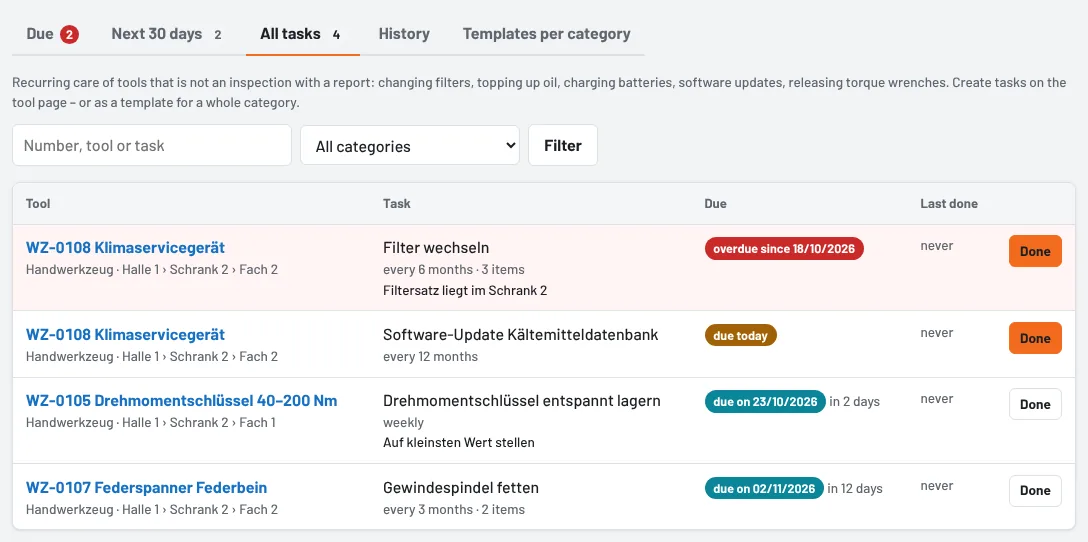
- On the tool page every task shows its due date: overdue in red, due today in yellow, otherwise the date.
- The Care & maintenance overview groups everything in tabs: Due (overdue and today), Next 30 days, All tasks, History and Templates per category. Filter by category, search term (number, tool or task) and – at head office – by site.
- Every morning the tool crib and foremen of each site get a notification when tasks become due today or overdue since today; on Mondays there is also a reminder of everything still open. The notification "Maintenance tasks due" can be switched on and off under Notifications (bell → "All notifications and settings").
Step 4: Record as done
- Tap Done next to the task – on the tool page or directly in the overview.
- Tick the items on the Checklist.
- Optionally add a Note ("Filter was very dirty") and change the date if the work was done earlier.
- Record as done.
Tulz calculates the next due date from the day it was done. If not all items are ticked, it is still recorded – with a note of how many are missing. Recording an older completion later does not move the due date.
History and timeline
Every completion is listed with date, staff member, note and ticked checklist in the History on the tool page, in the History tab of the overview and in the tool's Timeline. If a task is deleted, its completions remain in the history. If the tool is deleted, its tasks and history go with it.
Tips
- Unit temporarily out of service? Untick Active under Edit – the task is paused and does not appear in any list.
- Care is not an inspection: for calibration, electrical safety testing and test equipment monitoring with a report and badge, use Inspections.
- Retired and lost tools do not appear in any maintenance list.
- The Monthly report lists the overdue maintenance tasks of the previous month.
As of