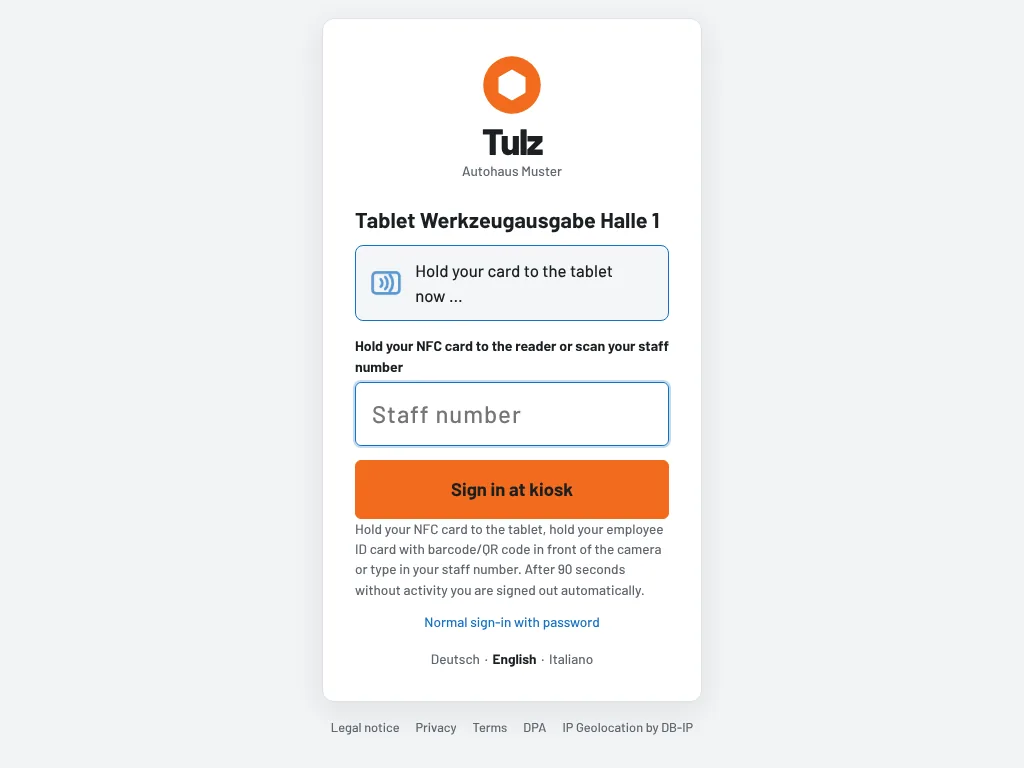
Instead of scanning their staff number, employees simply hold their NFC card to the kiosk tablet – and are signed in. This works with many existing employee ID cards with a chip, with access cards and with inexpensive key fobs.
What you need
- Cards: any NFC card or NFC tag with a fixed ID (UID), e.g. MIFARE Classic, MIFARE DESFire, NTAG or Ultralight – so most company ID cards and access cards too. To sign in, Tulz only reads the ID. Tulz can also write to new cards and key fobs with an NTAG chip (see Writing NFC cards and key fobs).
- Reading on the tablet: an Android tablet with NFC and either the Fully Kiosk Browser (recommended; PLUS license, switch on Advanced Web Settings → Enable JavaScript Interface) or Chrome (https only). In Chrome, someone taps Turn on NFC the first time and allows access; after that the tablet reads by itself.
- Or a card reader: a USB or Bluetooth card reader in keyboard mode (outputs the ID followed by Enter) works on any tablet, including the iPad – the iPad cannot read NFC in the browser itself. Whether the reader outputs the ID in hexadecimal or as a decimal number does not matter: Tulz recognises the same card in both notations and byte orders.
- Windows PC or Mac with a USB NFC reader (e.g. ACR122U, which does not type like a keyboard): here the free NFC Bridge reads the cards. Start the bridge and tap Connect USB reader once on the kiosk sign-in page – after that, placing the card signs the employee in. A card left on the reader does not sign in again right after signing out; lift it briefly and place it again.
A tablet's NFC antenna is usually on the back. If the tablet sits in a closed wall mount, a small USB card reader next to the tablet is often the better choice.
Registering cards
- At the kiosk by the foreman or the tool issue counter: sign in, tap Register NFC cards, search for the employee, Register card – and hold the new card to the tablet. This way the cards for a whole workshop are handed out quickly. The list shows the employees who may sign in at this kiosk.
- At the kiosk by the employee themselves: sign in with the staff number, tap My NFC card and hold the card to the tablet. From then on the card is enough.
- By the administrator: Users → NFC cards lists all employees with their card. With a USB reader or an Android phone, click Write or Register only and place the card – a whole workshop is done in a few minutes. For a single employee use Users → edit → NFC card (kiosk). In addition, every employee can change their card under My profile → NFC card for the kiosk on their own device.
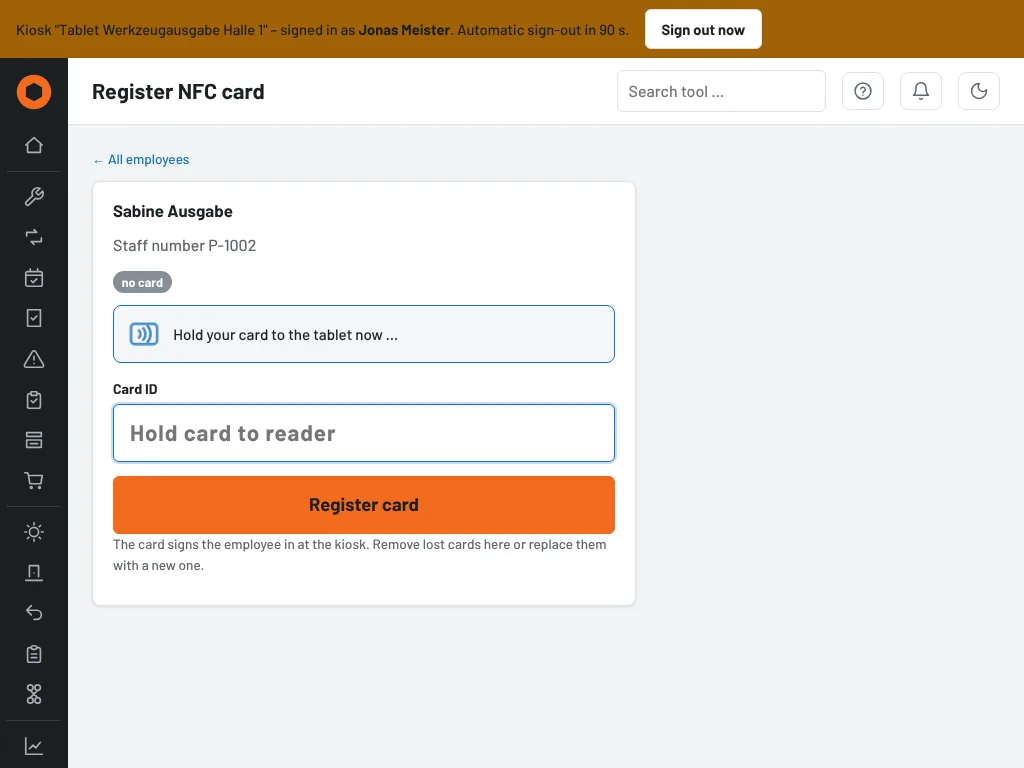
A card always belongs to exactly one employee; Tulz rejects a card that is already assigned. Administrators do not get a card – they do not sign in at the kiosk.
Settings
Under Settings → Kiosk devices → Sign-in with NFC card (administrator):
- Sign-in at the kiosk: Staff number or NFC card (default) or NFC card only. With “NFC card only” the staff number alone is no longer enough – useful because staff numbers are often printed on rosters, lists or ID cards. The page shows how many employees already have a card; only switch over once everyone has one.
- Employees may register their own card at the kiosk: on (default) or off. When switched off, only administrators, foremen and the tool issue counter register cards.
Security
- Anyone signed in at the kiosk with just the staff number can neither replace nor remove an existing card. That is only possible with exactly this card, in the profile on their own device or via the tool issue counter, foreman and administrator – so nobody can store their own card on a colleague's account using someone else's staff number.
- Lost a card? The tool issue counter, foreman or administrator removes it or replaces it with a new one. The old card then no longer signs anyone in.
- Every registration and removal is recorded in the log, as is every kiosk sign-in with the note NFC card.
- The ID of a simple card is not a secret like a password – with special devices it can be read and copied. For tool issuing this is usually sufficient: the role's permissions apply, profile and settings are locked at the kiosk, and every booking can be traced.
- Cards written by Tulz also carry a random card ID. When Chrome on Android or the NFC Bridge reads the card, the ID must match the card – copied to another card, it signs nobody in.
If the card is not recognised
- The display above the input field tells you what is going on: Hold your card to the tablet now … means ready. If it says To use NFC on the tablet, tap “Turn on NFC” once, tap the button next to it.
- NFC is not allowed or switched off: turn on NFC in the Android settings and allow it for the page in Chrome (padlock icon in the address bar → Permissions).
- With Fully: is Enable JavaScript Interface switched on? Like kiosk mode, the option is part of the PLUS license.
- This card is not known at the kiosk: the card has not been registered yet or belongs to an employee of another site or to an administrator.