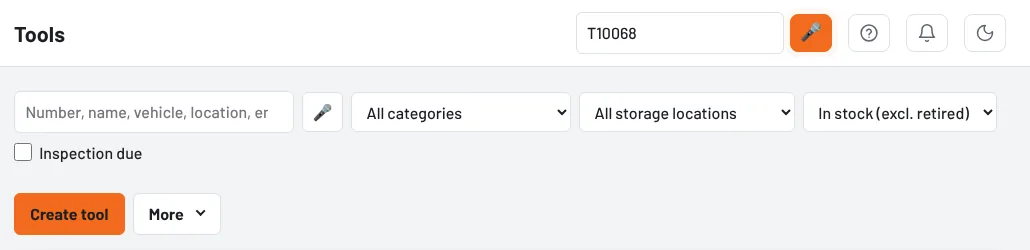
Oily hands, gloves on, phone in your pocket: with voice search you simply tell Tulz what you are looking for. Next to the search field at the top and in the tool list there is a microphone icon. Tap it once, speak – Tulz puts what you said into the search field and searches straight away.
How it works
- Tap the microphone next to the search field (in the header at the top or in the tool list).
- The first time, the browser asks whether Tulz may use the microphone – choose Allow. It asks only once per device.
- Speak as soon as the microphone pulses red: "camshaft alignment bar", "torque wrench 200", "T 10 0 68".
- Tulz writes what you said into the field and searches. Numbers spoken in pieces are joined: "T ten zero six eight" becomes "T10068".
Matching works exactly like typed search: inventory number, name, manufacturer, additional numbers (OEM, supplier), vehicles and parts. The recognition language follows the interface language (German, English, Italian).
Which browsers support it?
Recognition is done by the browser, not by Tulz:
- Chrome, Edge, Samsung Internet (Android, Windows, Mac) – yes
- Safari (iPhone, iPad, Mac) – yes
- Firefox – no; the microphone icon does not appear there
The page must be opened via https (always the case with Tulz), otherwise the browser does not release the microphone.
Privacy – please read
Speech recognition runs with the browser vendor: Chrome and Edge send the recording to Google or Microsoft for recognition, Safari to Apple. Tulz itself only receives the recognised text and stores no recording. If you prefer not to, keep typing – voice search is optional and replaces nothing. What you said ends up in the search field only, like any search; Tulz does not log search terms.
If nothing is recognised
| Observation | What to do |
|---|---|
| No microphone icon | The browser has no speech recognition (e.g. Firefox) – use Chrome, Edge or Safari. |
| "Microphone not allowed" | Allow the microphone for Tulz in the browser's site settings (padlock icon in the address bar). |
| "No microphone found" | On a PC connect a microphone or headset; on a phone check whether another app is using the microphone. |
| Nothing arrives | Get closer to the device, avoid background noise, speak numbers digit by digit. |
| "Speech recognition not reachable" | Recognition needs the internet – check that the device is online in the workshop Wi-Fi. |
| Wrong word | Just tap and speak again, or correct the field with the keyboard. |
As of